> For the complete documentation index, see [llms.txt](https://help.hippoly.com/llms.txt). Markdown versions of documentation pages are available by appending `.md` to page URLs; this page is available as [Markdown](https://help.hippoly.com/using-hippoly/files-and-folders.md).
# Files and folders
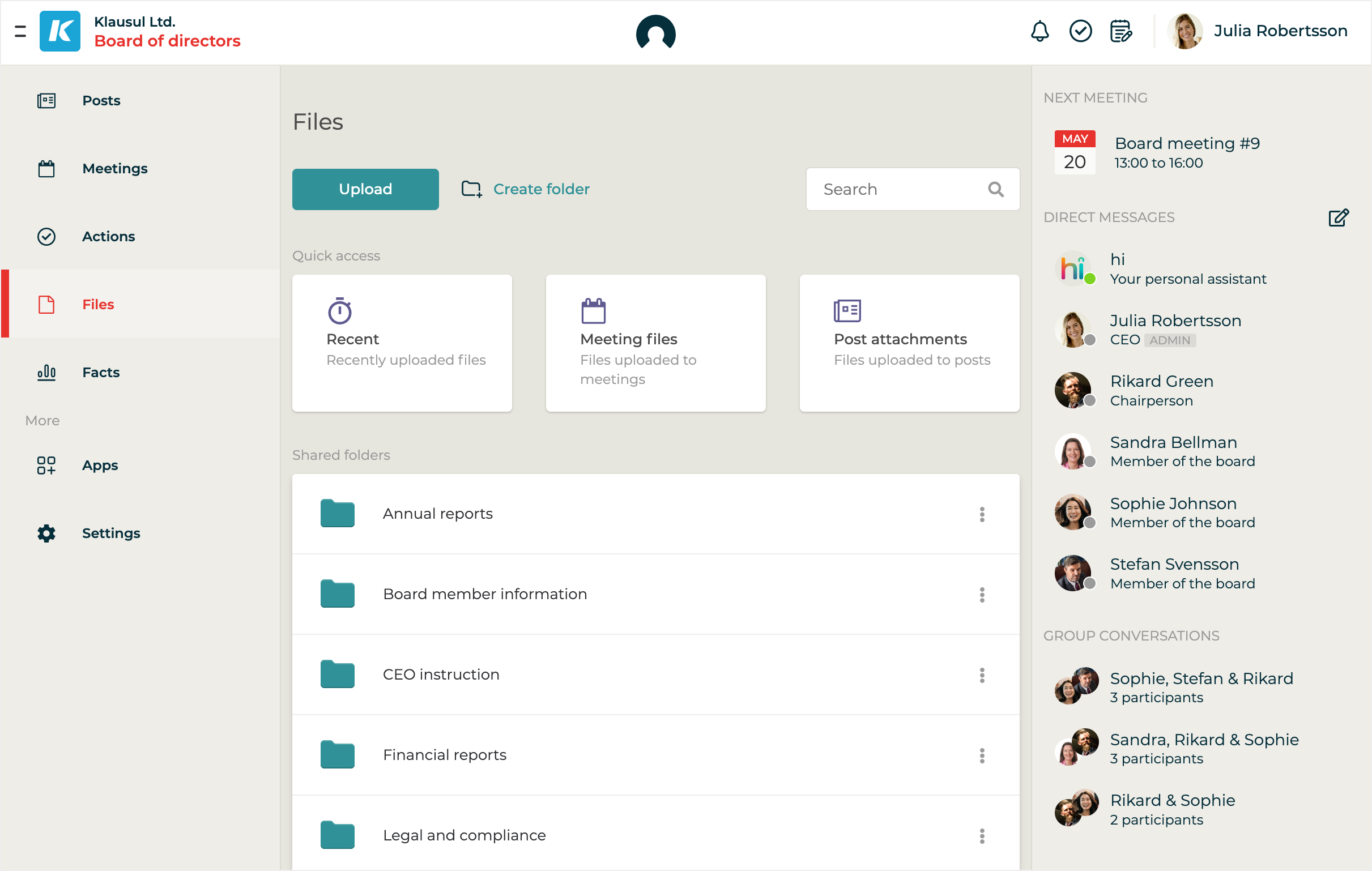
Store, organise, and share files securely within your workspace. Everything stays structured, easy to access, and available from both desktop and mobile.
## Understand Files and Folders
In Hippoly, all workspace users can:
* **Create, upload, delete, and view** files and folders.
* **Manage file versions** with built-in version control, making it easy to update files and track changes over time.
The folder structure is intended for:
* **long-term** or **archived documents** that need to stay organised and accessible.
* Files in the folder structure can **easily be reused** in meetings, posts, and discussions across the workspace.
{% hint style="info" %}
**Tip:** Files related to a specific meeting should be uploaded **directly to the meeting**, not to the general folder structure.
{% endhint %}
Safe file viewing and storage:
* All files are protected by **multi-layered encryption** to ensure security.
* Hippoly **does not manipulate or change** uploaded files - they can always be downloaded in their original format and state.
* Common file types like **PDFs, PowerPoint presentations,** and **Word documents** can be **viewed directly in Hippoly** without downloading, helping to prevent the spread of sensitive information.
Files and folders
## Files and Folders FAQ
Can I see who has viewed a specific file?
**Answer:**\
Yes, under the file details panel you can [see who has viewed or downloaded a specific file](/using-hippoly/files-and-folders/view-and-download-log.md) in Hippoly.
Is my team automatically notified when I upload new files?
**Answer:**\
No, uploading files to folders or meetings does **not** automatically notify your team.\
If you want to make sure others are aware of the new files, you can [share them as a post](/using-hippoly/files-and-folders/share-file-as-post.md) or as part of a [meeting agenda](broken://pages/v5YyAFeZGfJbE89QOYCl) to trigger an automatic notification.
Can I edit my uploaded files in Hippoly?
**Answer:**\
No, you can’t edit uploaded files, such as Word or Excel documents, directly in Hippoly. To make changes, you’ll need to [download the file](/using-hippoly/files-and-folders/download-files-and-folders.md#download-file) to your computer, edit it, and then [upload it as a new version](/using-hippoly/files-and-folders/update-file.md).
However, **agendas and minutes** can be created and edited directly in Hippoly using the built-in editor.
What's the file size limit for uploads?
**Answer:**\
Individual files uploaded to Hippoly can be up to 1000 MB (1 GB) in size. The total amount of storage available to your workspace depends on your subscription plan.
Can I download all files from my workspace?
**Answer:**\
Yes, you can [download all files from your workspace](/using-hippoly/files-and-folders/download-files-and-folders.md#download-all-files-and-folders) in one go. It's a quick way to back up or transfer everything from your workspace.
---
# Agent Instructions
This documentation is published with GitBook. GitBook is the documentation platform designed so that both humans and AI agents can read, navigate, and reason over technical content effectively. Learn more at gitbook.com.
## Querying This Documentation
If you need additional information that is not directly available in this page, you can query the documentation dynamically by asking a question.
Perform an HTTP GET request on the current page URL with the `ask` query parameter, and the optional `goal` query parameter:
```
GET https://help.hippoly.com/using-hippoly/files-and-folders.md?ask=&goal=
```
`ask` is the immediate question: it should be specific, self-contained, and written in natural language.
`goal` is optional and describes the broader end goal you are ultimately trying to accomplish on behalf of the user. GitBook uses it to tailor the answer towards what is most useful for that goal.
The response will contain a direct answer to the question and relevant excerpts and sources from the documentation.
Use this mechanism when the answer is not explicitly present in the current page, you need clarification or additional context, or you want to retrieve related documentation sections.