> For the complete documentation index, see [llms.txt](https://help.hippoly.com/llms.txt). Markdown versions of documentation pages are available by appending `.md` to page URLs; this page is available as [Markdown](https://help.hippoly.com/using-hippoly/meetings/create-and-share-meeting.md).
# Create and share meeting
{% stepper %}
{% step %}
Navigate to `Meetings` in the Main menu
{% endstep %}
{% step %}
Click the `New Meeting` button
{% endstep %}
{% step %}
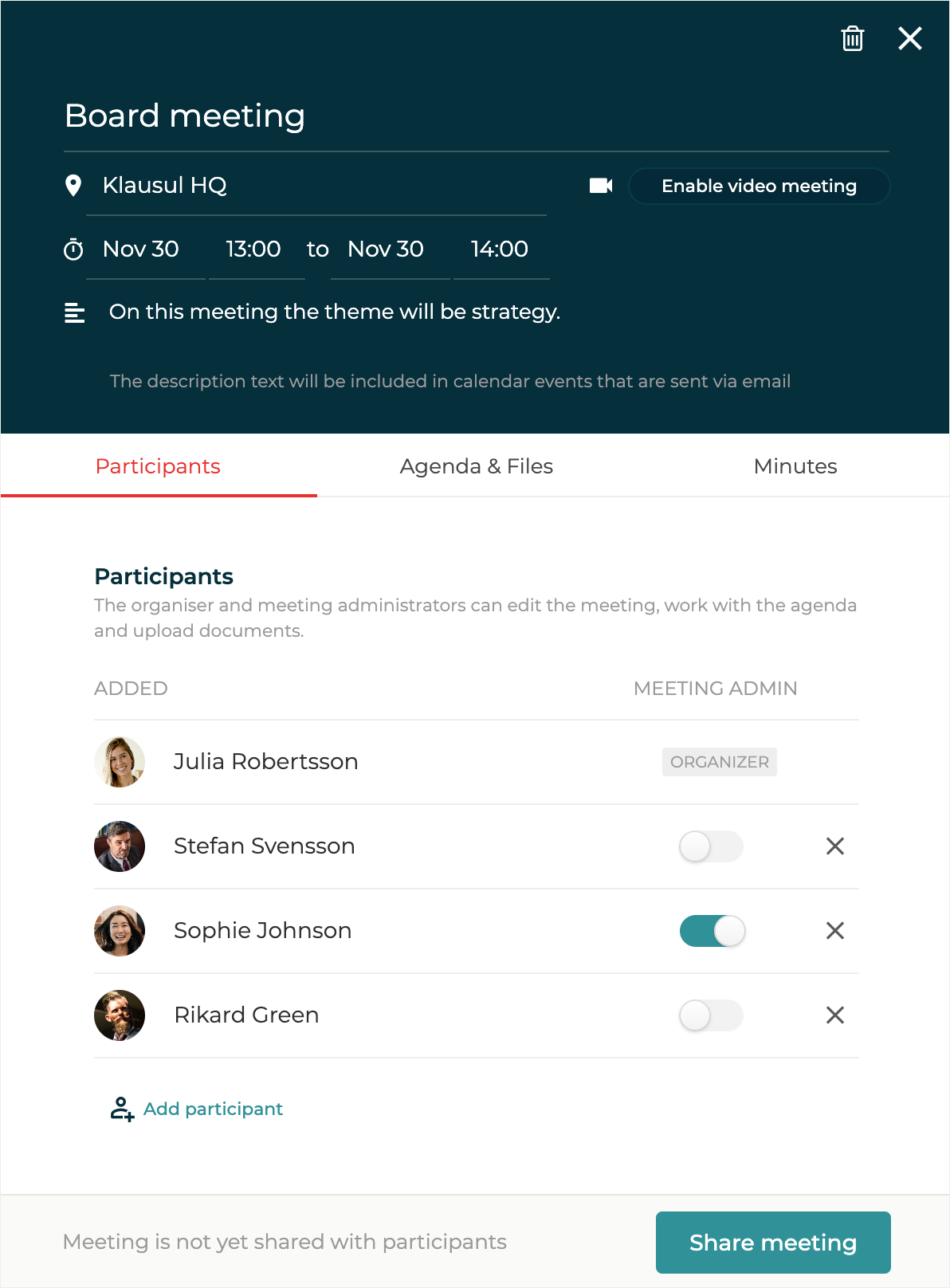
Add a **Meeting Title**, **Location**, **Date** and **Time**
{% endstep %}
{% step %}
If you want, you can also add a **description**, for example the theme or purpose of the Meeting.
{% endstep %}
{% step %}
Select the people you want to invite to the Meeting. By default, all workspace users are included. To remove someone, click the `X` button to the right of their name.
{% endstep %}
{% step %}
If you want any participant to be able to edit the meeting, the agenda and upload files switch on the `Meeting Admin Toggle` for that person.
{% endstep %}
{% step %}
Click the `Share meeting` button to invite the added participants to the Meeting.
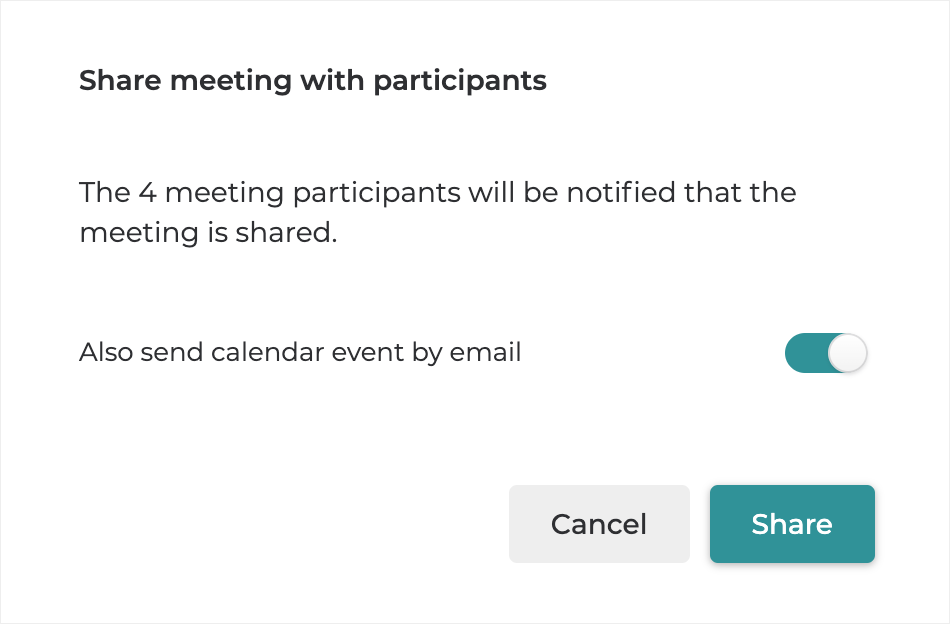
A dialog will appear asking if you also want to send calendar events by email (recommended). This will update the the participants personal calendars (in the same way as if you would have sent the meeting invitation form your desktop calendar program, such as outlook, Mac Calendar etc).
{% hint style="info" %}
Email invitations include the meeting title, location, time and description. You should therefore not have any sensitive information in these fields as e-mail is not a secure method of communication.
{% endhint %}
{% endstep %}
{% step %}
Confirm the sharing by clicking `Share`.
{% endstep %}
{% step %}
Participants will receive an email where they can RSVP (Accept, Reject or say Maybe) and the meeting will automatically be added to their personal calendars. You as an Organiser will also receive an email to keep your calendar up to date.
{% endstep %}
{% endstepper %}
### Turn off email calendar events
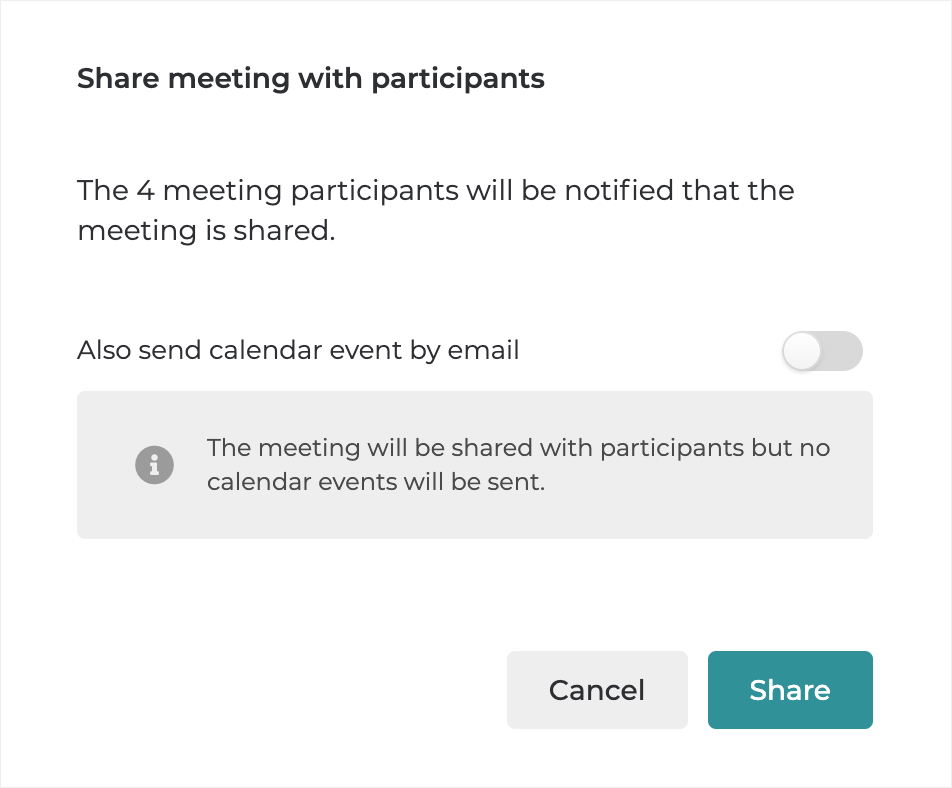
If you don’t want to send calendar events by email when sharing a Meeting, turn off the `Calendar Event toggle` in the confirmation dialog. This can be useful, for example, if your team is new to Hippoly and Meeting invitations have already been sent through another calendar system.
{% hint style="info" %}
**Note:** If you create a past Meeting (a Meeting with a date and time set in the past), no email calendar events will be sent.
{% endhint %}
### Share meeting and agenda in one go
While it’s most common to schedule a Meeting first so everyone gets it into their calendar, and then share the Agenda and supporting files closer to the meeting date, you can also do everything in one go. If your Agenda and materials are already prepared, Hippoly allows you to create the Meeting, build the Agenda, and share it with participants in a single step.
If you want to share an agenda together with the meeting follow theses steps.
{% stepper %}
{% step %}
**Create the Meeting** as described earlier in this article, but don’t share it yet.
{% endstep %}
{% step %}
Click the `Agenda & Files` tab and [create your agenda](/using-hippoly/meetings/create-and-edit-agenda.md).
{% endstep %}
{% step %}
When you're satisfied with the Agenda, click `Share agenda` in the agenda builder.
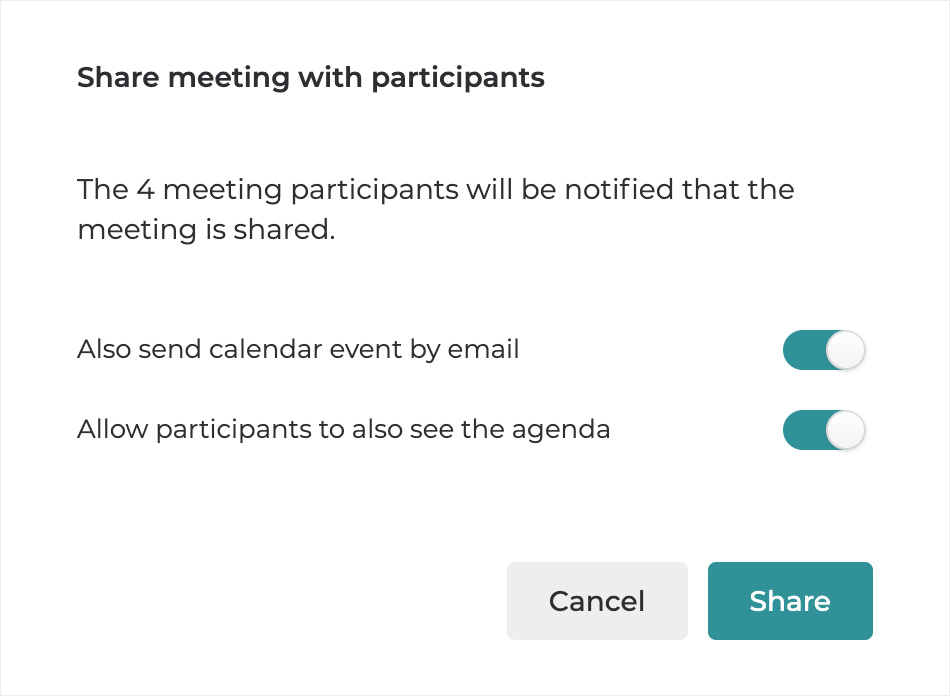
A dialog will appear where you confirm the sharing.
{% endstep %}
{% step %}
Confirm the sharing by clicking the `Share` button.
{% hint style="info" %}
If you haven’t turned off any of the toggles in the confirmation dialog, a calendar event and an email informing participants that the Agenda is available will be sent out.
{% endhint %}
{% endstep %}
{% endstepper %}
---
# Agent Instructions
This documentation is published with GitBook. GitBook is the documentation platform designed so that both humans and AI agents can read, navigate, and reason over technical content effectively. Learn more at gitbook.com.
## Querying This Documentation
If you need additional information that is not directly available in this page, you can query the documentation by asking a question.
Perform an HTTP GET request on the following URL with the `ask` and `goal` query parameters:
```
GET https://help.hippoly.com/using-hippoly/meetings/create-and-share-meeting.md?ask=&goal=
```
`ask` is the immediate question: it should be specific, self-contained, and written in natural language.
`goal` is what the user is ultimately trying to achieve, the reason they need the answer. Sharing it helps GitBook give you a better, more relevant answer. A goal is most helpful when it describes the outcome the user wants rather than restating the question. For example, with `ask=how do I create an API token`, a goal like `automate deployments from our CI pipeline` lets GitBook tailor the answer to that use case.
The response will contain a direct answer to the question and relevant excerpts and sources from the documentation.
Use this mechanism when the answer is not explicitly present in the current page, you need clarification or additional context, or you want to retrieve related documentation sections.