> For the complete documentation index, see [llms.txt](https://help.hippoly.com/llms.txt). Markdown versions of documentation pages are available by appending `.md` to page URLs; this page is available as [Markdown](https://help.hippoly.com/using-hippoly/meetings/manage-meeting-participants.md).
# Manage meeting participants
## Add participant
If you want to add a Participant to an already Shared Meeting, follow these steps.
{% stepper %}
{% step %}
Navigate to the Meeting.
{% endstep %}
{% step %}
Select the `Participants` tab.
{% endstep %}
{% step %}
Click the `Add participant` button at the bottom of the list of Participants.
{% endstep %}
{% step %}
Click the `Add` button to the right of the person you want to add. A email Calendar Event will automatically be sent out to the added person.
{% endstep %}
{% endstepper %}
## Add external guest
An external guest is someone who is not a user in the workspace but still needs to attend all or part of the Meeting. You can invite external guests just like any other attendee, and they will receive a meeting invitation by email. If a video meeting link has been added, it will also be included in the calendar event.
{% hint style="info" %}
**Note:** External guests cannot access the Meeting, the Meeting Agenda or Meeting Files inside Hippoly.
{% endhint %}
{% stepper %}
{% step %}
Navigate to the Meeting.
{% endstep %}
{% step %}
Select the `Participants` tab.
{% endstep %}
{% step %}
Click the `Add external guest` button. If you don’t see it, click `Add participant` first.
{% endstep %}
{% step %}
In the dialog that appears, enter the guest’s **full name** and **email address**. If you want, you can also include a private message in the invitation.
{% endstep %}
{% step %}
Click the `Add` button in the dialog. A email Calendar Event will automatically be sent out to the added person.
{% endstep %}
{% endstepper %}
## Remove participant
If you want to remove a Participant from a Shared Meeting, follow these steps.
{% stepper %}
{% step %}
Navigate to the Meeting.
{% endstep %}
{% step %}
Select the `Participants` tab.
{% endstep %}
{% step %}
Click the `Menu` button located to the right of Participant's name.
{% endstep %}
{% step %}
Select `Remove participant` from the Menu. If the participant has already received a Calendar Event via email, they will automatically be notified by a new email that the Meeting has been canceled.
{% endstep %}
{% endstepper %}
## Make participant meeting administrator
To allow Participants to edit the Meeting, the Meeting Agenda and upload Files, assign them as a Meeting Administrator. Follow these steps to do so.
{% stepper %}
{% step %}
Navigate to the Meeting.
{% endstep %}
{% step %}
Select the `Participants` tab.
{% endstep %}
{% step %}
Switch on the `Meeting admin toggle` located to the right of the Participant's name.
{% endstep %}
{% endstepper %}
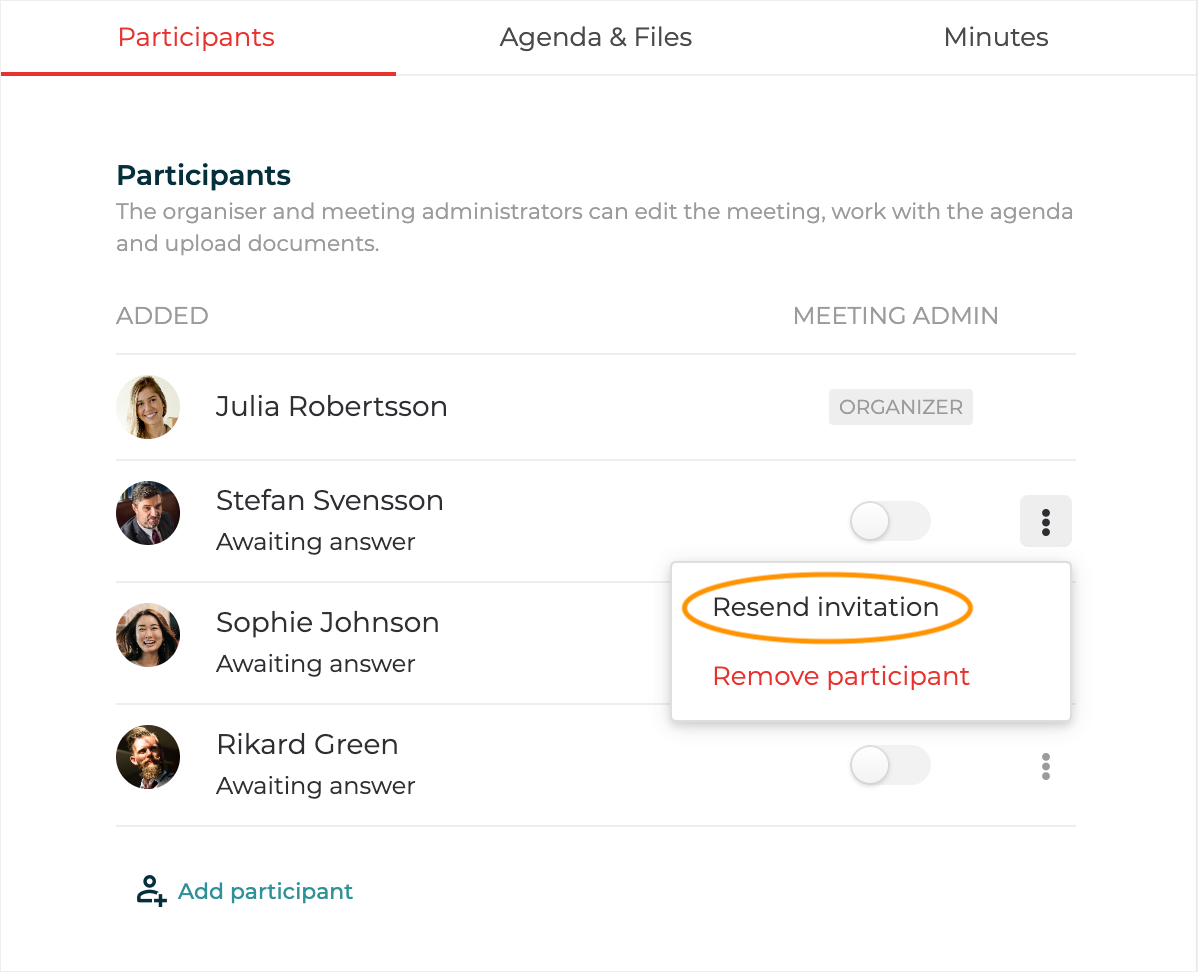
## Resend meeting invitation to participant
There may be occasions when you need to resend the Meeting Invitation and Calendar Event to a Participant. This could be necessary if the Participant did not receive the initial invitation, has changed their email address, or for other reasons. Follow theses steps to do so.
{% stepper %}
{% step %}
Navigate to the Meeting.
{% endstep %}
{% step %}
Select the `Participants` tab.
{% endstep %}
{% step %}
Click the `Menu` button located to the right of Participant's name.
{% endstep %}
{% step %}
Select `Resend invitation` from the Menu. A new Calendar Event will automatically be sent by email.
{% endstep %}
{% endstepper %}
---
# Agent Instructions
This documentation is published with GitBook. GitBook is the documentation platform designed so that both humans and AI agents can read, navigate, and reason over technical content effectively. Learn more at gitbook.com.
## Querying This Documentation
If you need additional information that is not directly available in this page, you can query the documentation by asking a question.
Perform an HTTP GET request on the following URL with the `ask` and `goal` query parameters:
```
GET https://help.hippoly.com/using-hippoly/meetings/manage-meeting-participants.md?ask=&goal=
```
`ask` is the immediate question: it should be specific, self-contained, and written in natural language.
`goal` is what the user is ultimately trying to achieve, the reason they need the answer. Sharing it helps GitBook give you a better, more relevant answer. A goal is most helpful when it describes the outcome the user wants rather than restating the question. For example, with `ask=how do I create an API token`, a goal like `automate deployments from our CI pipeline` lets GitBook tailor the answer to that use case.
The response will contain a direct answer to the question and relevant excerpts and sources from the documentation.
Use this mechanism when the answer is not explicitly present in the current page, you need clarification or additional context, or you want to retrieve related documentation sections.