> For the complete documentation index, see [llms.txt](https://help.hippoly.com/llms.txt). Markdown versions of documentation pages are available by appending `.md` to page URLs; this page is available as [Markdown](https://help.hippoly.com/using-hippoly/notifications.md).
# Notifications
Notifications highlight essential tasks that need your attention and makes sure you're always informed of the latest activities and updates across your different Hippoly workspaces.
## Understand notifications
The Hippoly Notification System ensures that you are promptly informed about vital updates and help you stay connected and informed without feeling overwhelmed. This is done by a combination of different **notification types**, **notification urgency levels** and **notification delivery methods**.
### Notification types
Each notification type corresponds to a specific event, like 'Meeting Agenda has been updated'. It includes an urgency level and delivery methods. The [Notification Types Overview](/using-hippoly/notifications/notification-types.md) provides a comprehensive list detailing the urgency levels, delivery methods, and recipients for all notification types.
### Urgency levels
Notifications in Hippoly have one of following two urgency levels.
* **High Priority** notifications often require immediate attention and usually involve situations where the user is expected to take action. An important distinction from Normal notifications is how they are marked as read. High priority notifications are marked as read only when the expected user action is completed.
* **Normal** notifications are mainly for informative purposes and are marked as read when the user clicks on them in the notification inbox. These notifications usually don't demand immediate action.
### Delivery methods
Notifications are delivered to you as user in three different ways
* [In app](/using-hippoly/notifications/in-app-notifications.md)
* [Push](/using-hippoly/notifications/push-notifications.md)
* [Mail](/using-hippoly/notifications/mail-notifications.md)
## Notifications inbox
The notification inbox is opened by clicking the `Bell icon` located at top right corner of the screen. If you have unread or new notifications, that will be indicated on the bell icon with a red bubble.
Indication when user has one unread High priority notification.
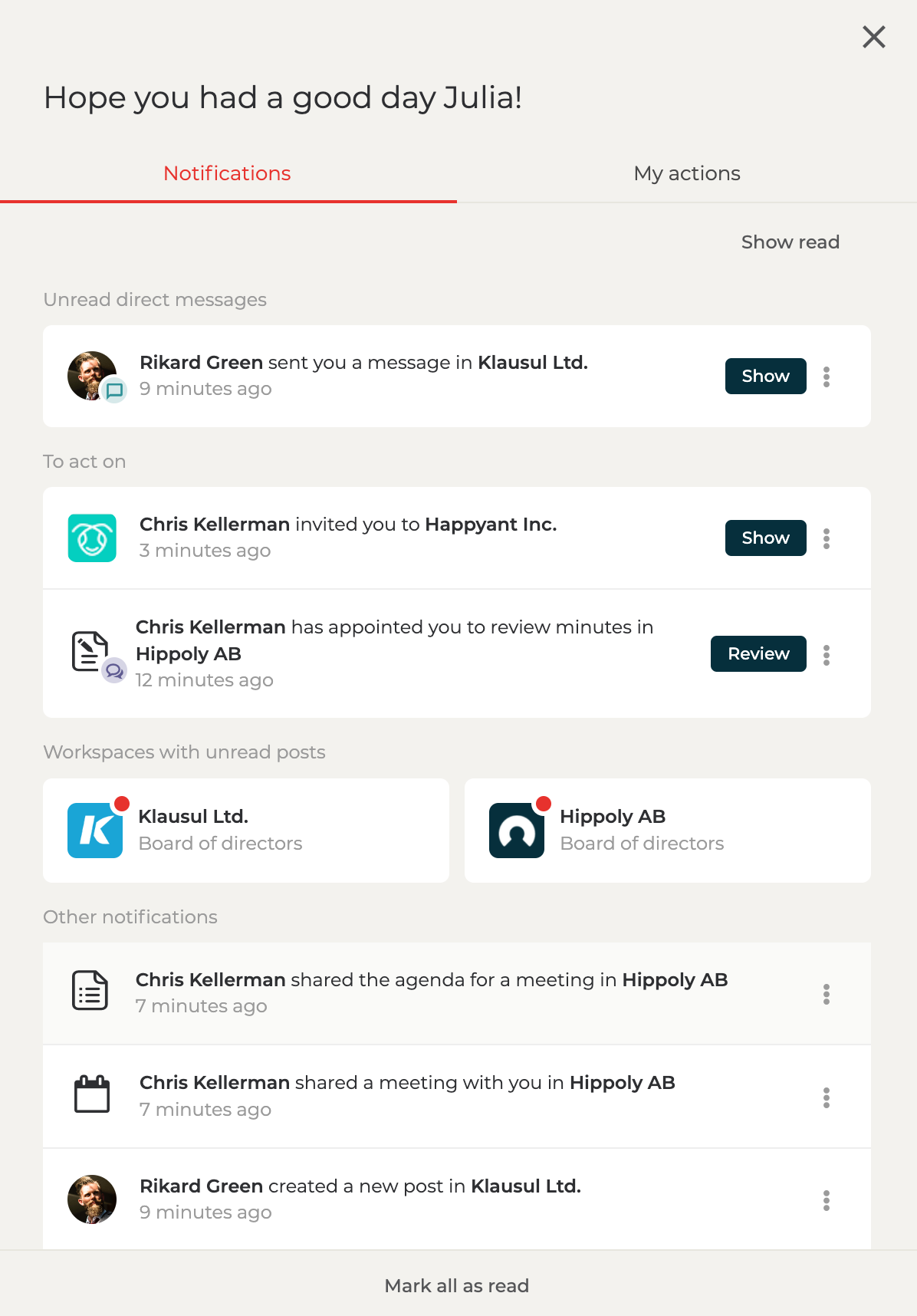
In the notification inbox you will see all your unread notifications, grouped by type and urgency level. Clicking on a `Notification` will navigate you to the source from where the notification origin, for example if you click on a direct message notification that will navigate you to that specific conversation.
Notification Inbox opened
### Mark notification as read
**High Priority** notifications are marked as read once the user takes action on their origin source, such as reading a direct message or accepting a workspace invitation.
**Normal** notifications are marked as read when the user clicks on them in the notification inbox or, for post notifications, by navigating to the to the post feed.
### Mark notification as read manually
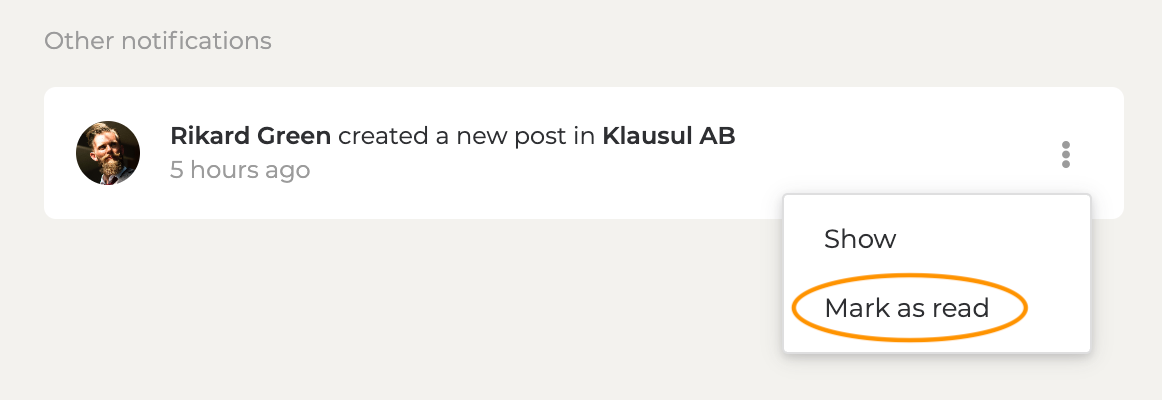
Notifications can manually be marked as read. To do so, click the `Menu icon` located to the right on the notification and select `Mark as read`.
Mark notification as read manually
### Mark all as read
If clicking the `Mark all as read` button located at the bottom of the notification inbox, all Normal notifications will be marked as read. High priority notifications will not be affected by this action.
### Show read notifications
When a notification is marked as read it will be removed from the inbox but it will not get deleted. By clicking the `Show read` button located at the top right corner of the notification inbox you can view all your read notifications.
### Mark notification as unread
1. Open the notification inbox.
2. Click the **`Show read`** button located at the top right corner.
3. Click the `Menu icon` located to the right on the notification you want to mark as unread.
4. Select `Mark as unread` and the notification will be moved back to the inbox.
---
# Agent Instructions
This documentation is published with GitBook. GitBook is the documentation platform designed so that both humans and AI agents can read, navigate, and reason over technical content effectively. Learn more at gitbook.com.
## Querying This Documentation
If you need additional information that is not directly available in this page, you can query the documentation dynamically by asking a question.
Perform an HTTP GET request on the current page URL with the `ask` query parameter, and the optional `goal` query parameter:
```
GET https://help.hippoly.com/using-hippoly/notifications.md?ask=&goal=
```
`ask` is the immediate question: it should be specific, self-contained, and written in natural language.
`goal` is optional and describes the broader end goal you are ultimately trying to accomplish on behalf of the user. GitBook uses it to tailor the answer towards what is most useful for that goal.
The response will contain a direct answer to the question and relevant excerpts and sources from the documentation.
Use this mechanism when the answer is not explicitly present in the current page, you need clarification or additional context, or you want to retrieve related documentation sections.